Help Center > Payroll Module
Steps for Getting Started with Payroll Module
INTRODUCTION
The module captures employee attendance and timekeeping information, produces checks and statements of earnings, distributes salary and fringe benefits to staff and retirees, processes remittances to government agencies for whom deductions are taken, and creates required tax documents.
Sub – Modules
1) Payroll Component
Salary paid to the employees comprises of several different components, such as basic salary, allowances, arrears, etc. The payroll component page is used to create the components and assign the applicability.
To create the component, go to:
Payroll -> Payroll Component -> Click on Create -> Enter the details as per the organization payroll policy -> Click on Create.

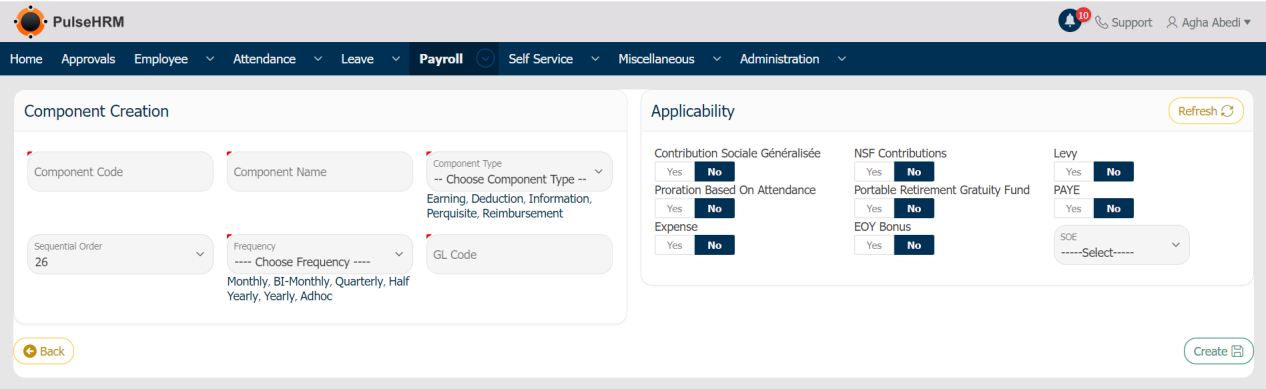
- Component Code: The Code provided for the component
- Component Name: The name of the component
- Component Type: The type of the component whether it belongs to earning, deduction, adhoc, etc.
- Sequential Order: It will automatically generate based on the last code mentioned.
- Frequency: How frequently should the component be used.
- GL Code: It is the code which is declared by the Mauritius Government.
- Applicability: The deduction which is dependent on the particular component should be selected.
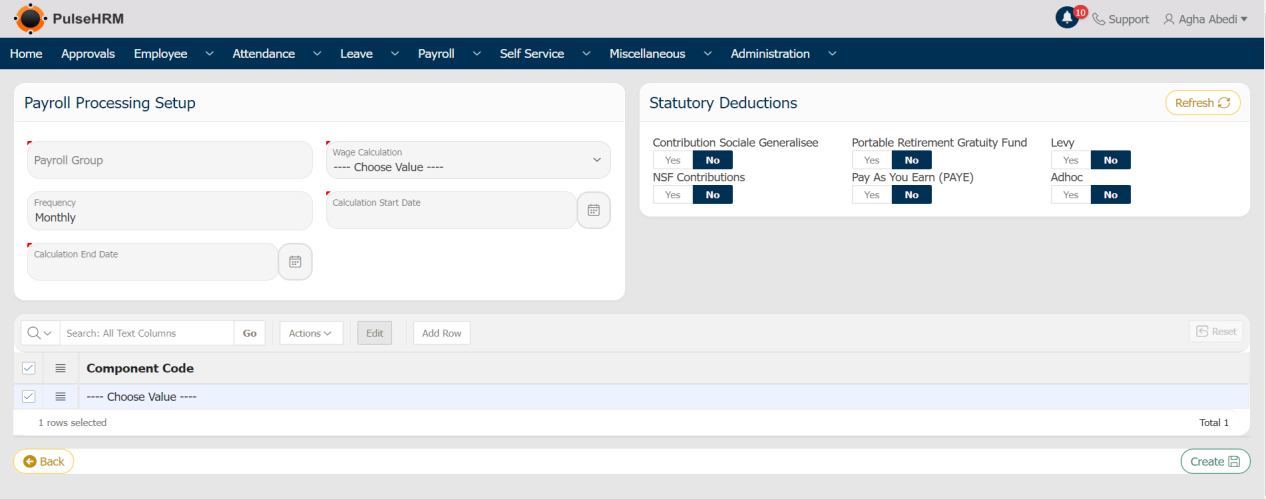
2) Payroll Group
It is used to group different components created under a single name according to the salary structure defined for the employees.
To create the payroll, go to:
Payroll -> Payroll Group -> Click on Create -> Enter the Group details -> select the earnings and deduction
(Note: The Overtime 1, 1.5, 3 should be mandatorily selected) -> Click on Create.
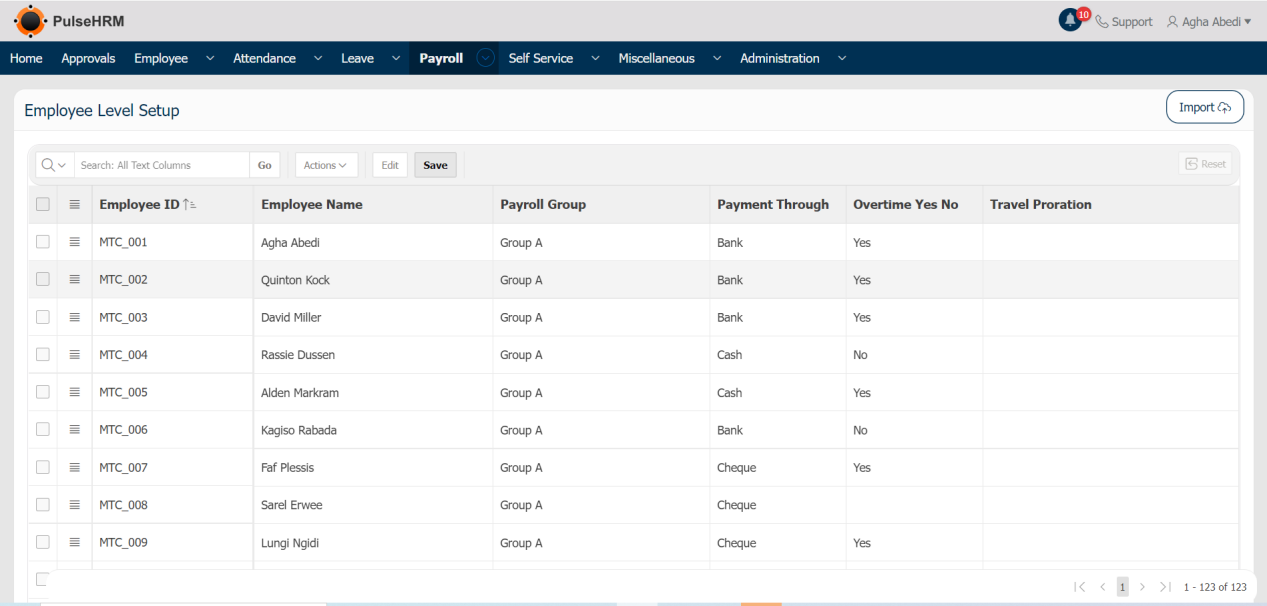
3) Employee Level Setup
It is used to assign the the payroll group, mode of payment and the permission for Overtime for all the employees of the organization based on the applicability.
The data can be assigned in two ways: manually by selecting from the drop-down under each column for each and every employee or using the import option.
To assign the data, go to:
Payroll -> Employee Level Setup -> Enter the data -> Click on Save.
To import the data, go to:
Payroll -> Employee Level Setup -> Click on Import -> Download the template -> Ente the data and save it -> Upload the template into the portal.
The template used to import:

4) Create Payroll Structure
It is used to add the gross salary breakage for all the employees of the organization for the processing of payroll during the payroll period.
To add the compensation details, go to:
Payroll -> Create Payroll Structure -> Click on Create -> Enter the details -> Click on Apply Changes.
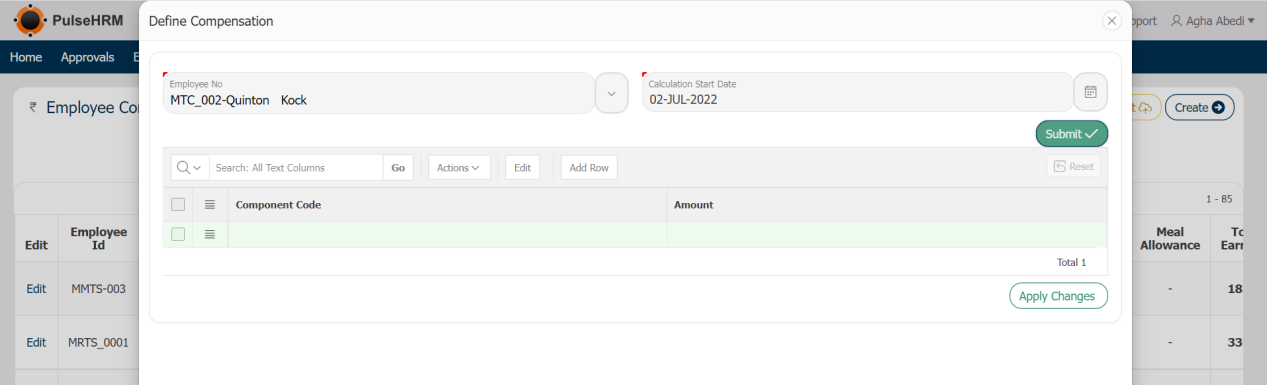
To import the data, go to:
Payroll -> Create Payroll Structure -> Click on Import -> Download the template and enter the data -> import the file into the portal.
The template to import the data:

The columns from C to Z should be replaced with the components created in the payroll component page.
5) Statutory Setup
It is used to assign the setup for the deductions according to the rules and regularization mentioned by Mauritius Government for NSFC, CSG, Levy, PAYE and monthly PRGF.
To define the statutory setup, go to:
Payroll -> Statutory Setup -> Select the required Setup.
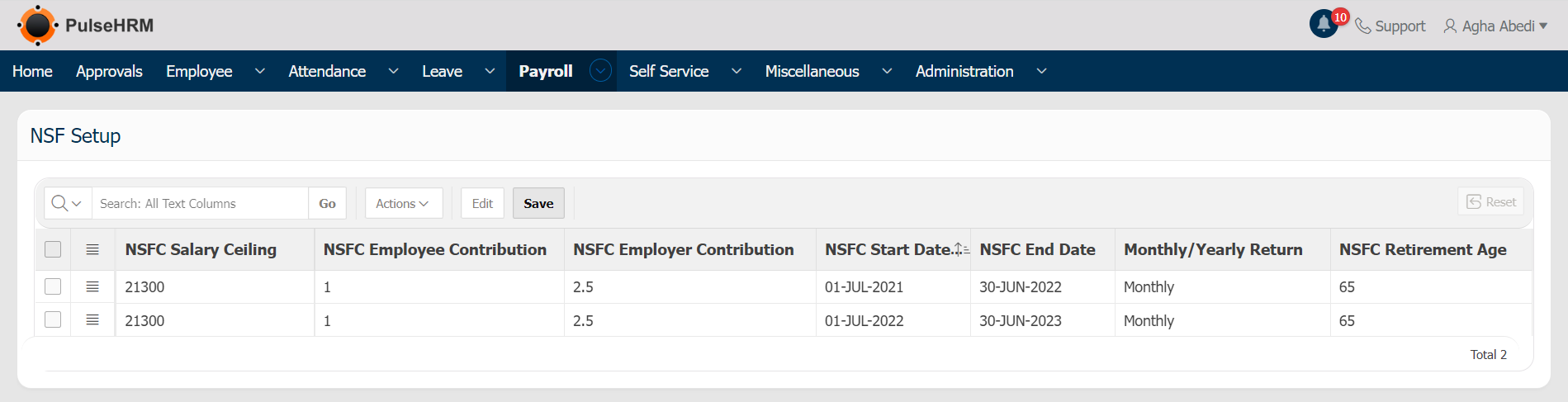
NSF Contribution Setup
The NSF is deducted from the basic amount of the employee and the applicability can be defined in the Payroll Components page. The Condition for the NSF Contribution should be defined here. If the basic amount is less than or 21300, then based on the basic amount the employee contribution is 1% and employer contribution is 2.5%. If the basic amount is more than 21300, it will ceil the value to 21300 and deduct the value according to the condition. The retirement age for the deduction of Levy should also be mentioned.
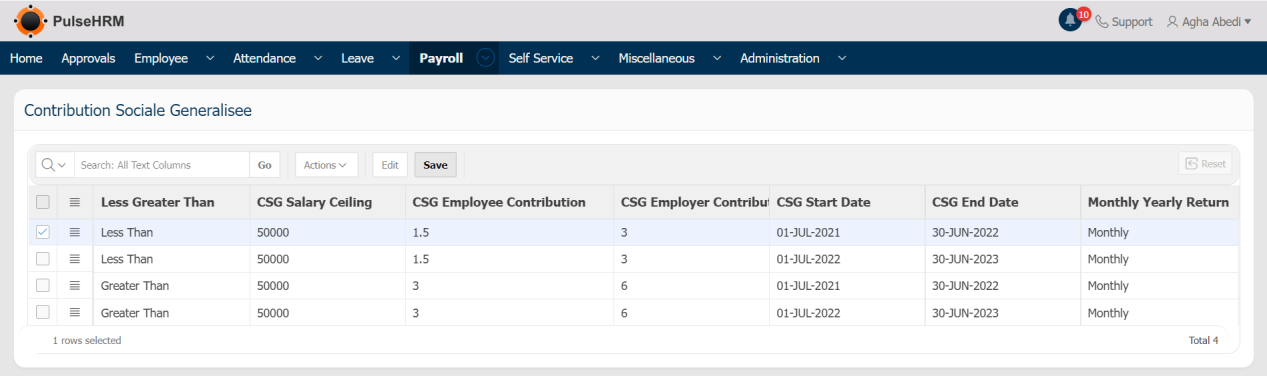
Contribution Sociale Generalisee Setup
The CSG is deducted from the basic amount of the employee. The condition for CSG setup is: If the basic amount is less than or equal to 50000, based on the basic amount the employee contribution is 1.5% and employer contribution is 3%. If the basic amount is more than 50000, based on basic amount the employee contribution is 3% and employer contribution is 6%.
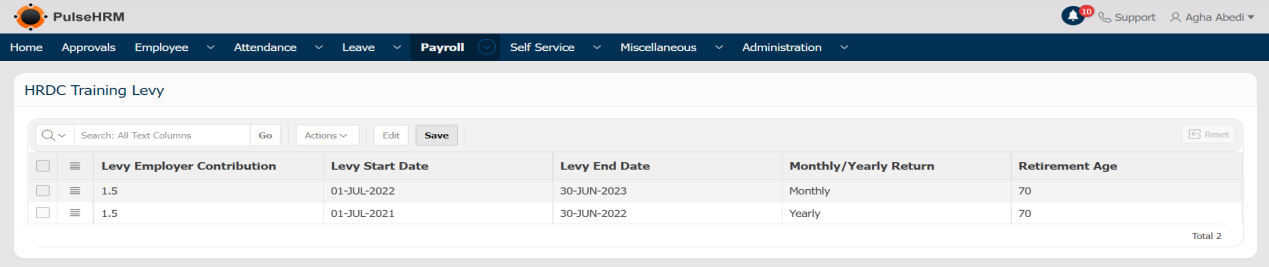
Levy Setup
The Levy Setup is an employer contribution. It is calculated based on the basic amount. The condition for Levy amount is 1.5% on basic amount. The retirement age for the deduction of Levy should also be mentioned.
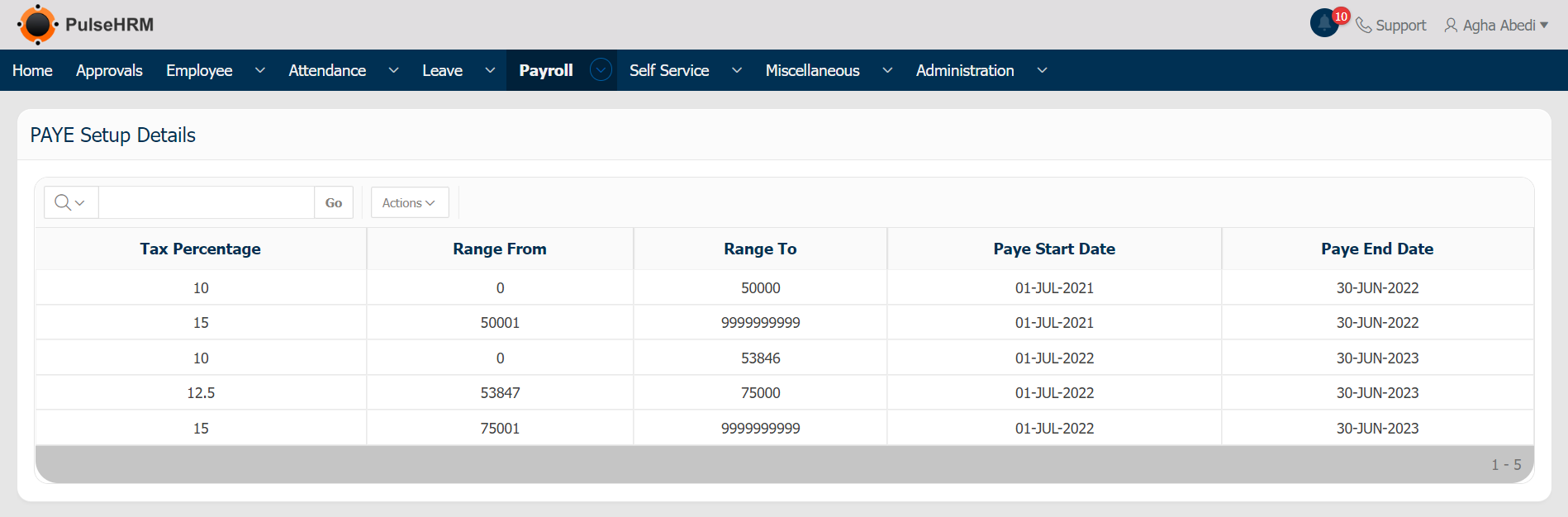
The PAYE Setup
The PAYE Setup is basically calculated on applicability selected. If the total amount of the employee lies between the mentioned range, the specified percentage of amount will be deducted.
For Ex: If the total amount of the employee lies between 0 to 53846, then 10% of the total amount will be deducted.
The PAYE can be deducted from the EDF Form under Self Service module also.
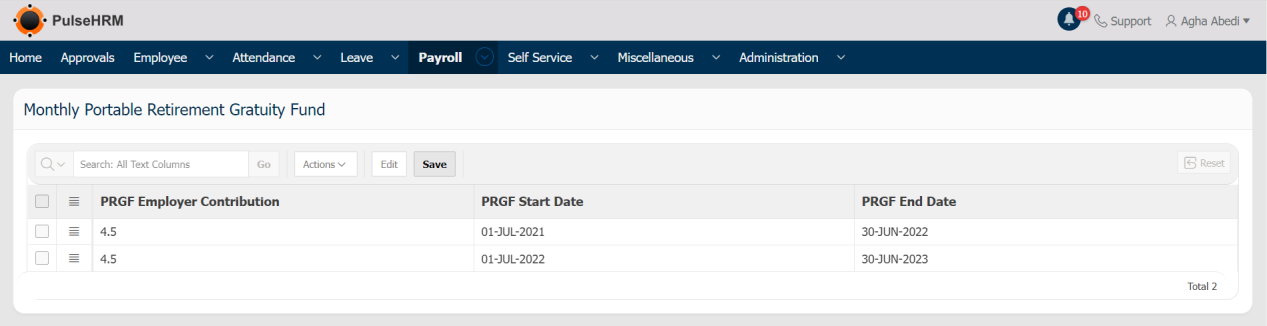
Monthly PRGF Setup
The PRGF Setup is basically calculated on the applicability selected. The amount should be calculated based on the percentage specified.
6) Attendance Process
The first step of Payroll process is Attendance Process.
To process the attendance, go to:
Payroll -> Attendance Process -> Select Payroll group and payroll month -> Click on Get logs and select Yes -> Click on Get Report.
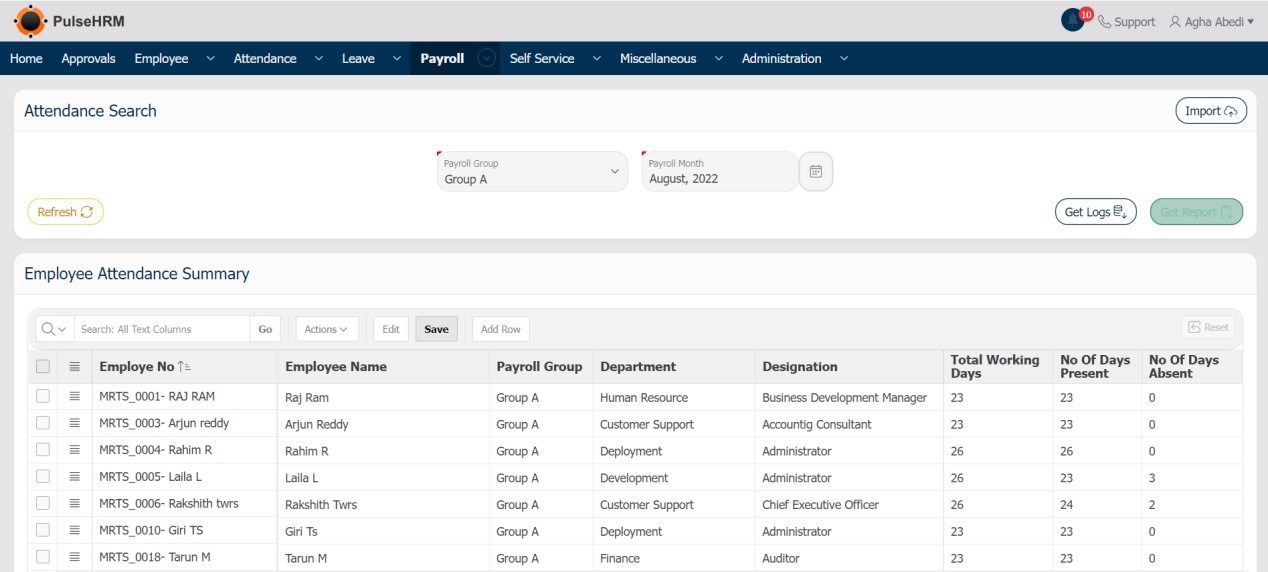
To import the data, go to:
Payroll -> Attendance Process -> click on import -> download the template -> enter the data and save it -> Upload the same into the portal.
The template to import attendance data:

7) Adhoc Payments & Deductions
If any of the payroll component setup is adhoc which means the value of the component keeps changing every month, so those values can be updated in the adhoc page. If there are no value to update in the adhoc then this step can be skipped. The employee names which was visible in the attendance page will be only shown in the adhoc and payroll process page.
To add the adhoc value, go to:
Payroll -> Adhoc Payments & Deductions -> Select payroll group and month -> Click on Get Report -> Enter the data -> Click on Save button.
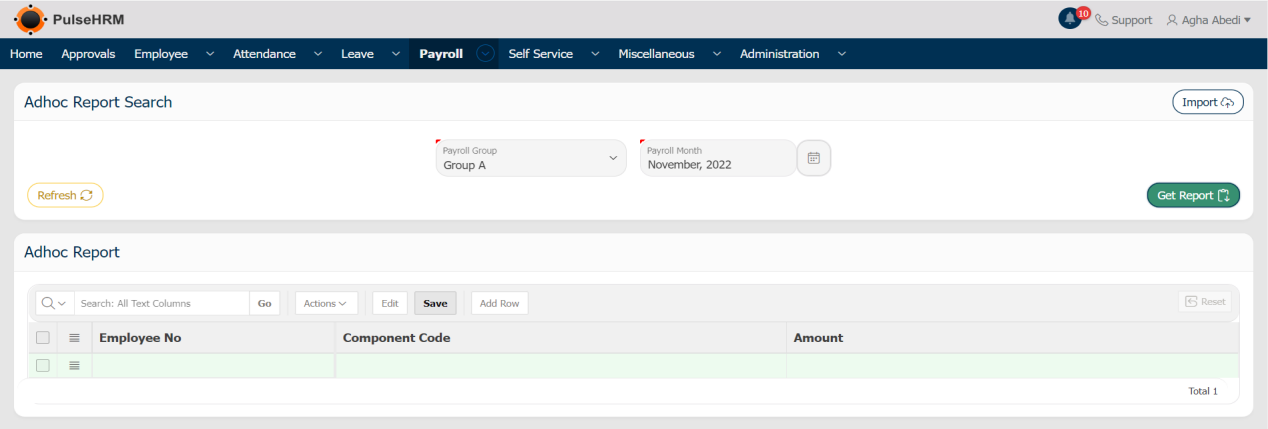
To import the data, go to:
Payroll -> Adhoc Payments & Deductions -> Click on Import button -> Download the template -> Enter the data and save it -> Import the file, select the payroll month -> click on Upload button.
The template to import the data

Note: The component code can be copied from the payroll component page.
8) Payroll Process Setup
The next and final step is the payroll process.
- Payroll Process:
Go to Payroll -> Payroll Process Setup -> Payroll Process -> Select payroll group, payroll month and pay option-> Click on Get Report -> Select the employees -> Click on Payroll Process.
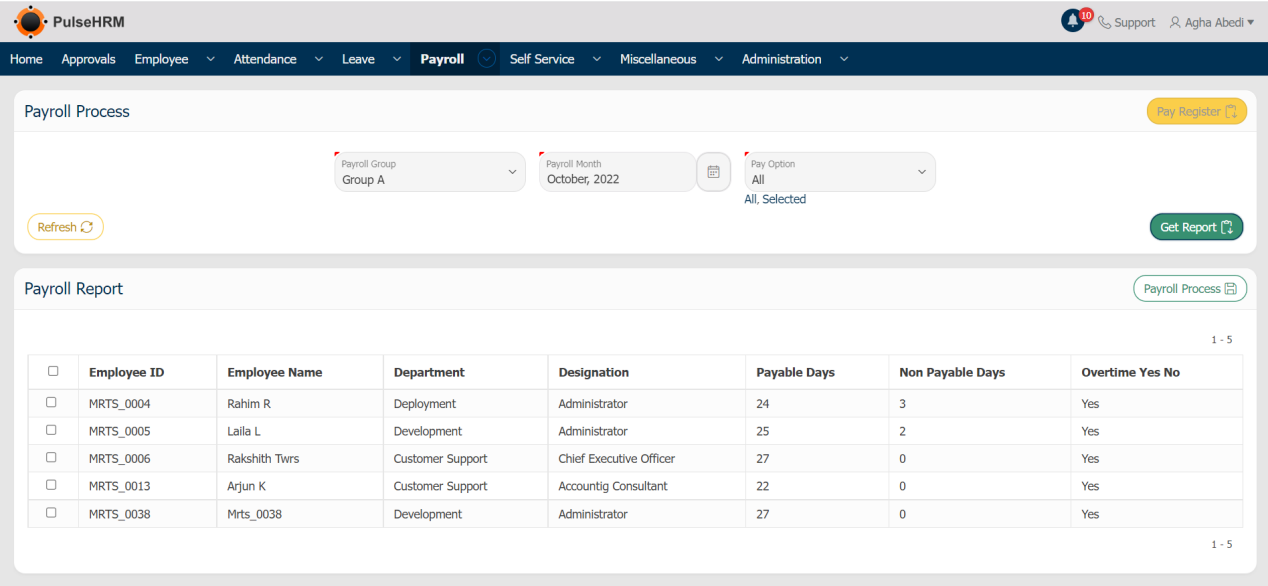
After the payroll is processed, the report can be viewed by clicking on the Pay register button
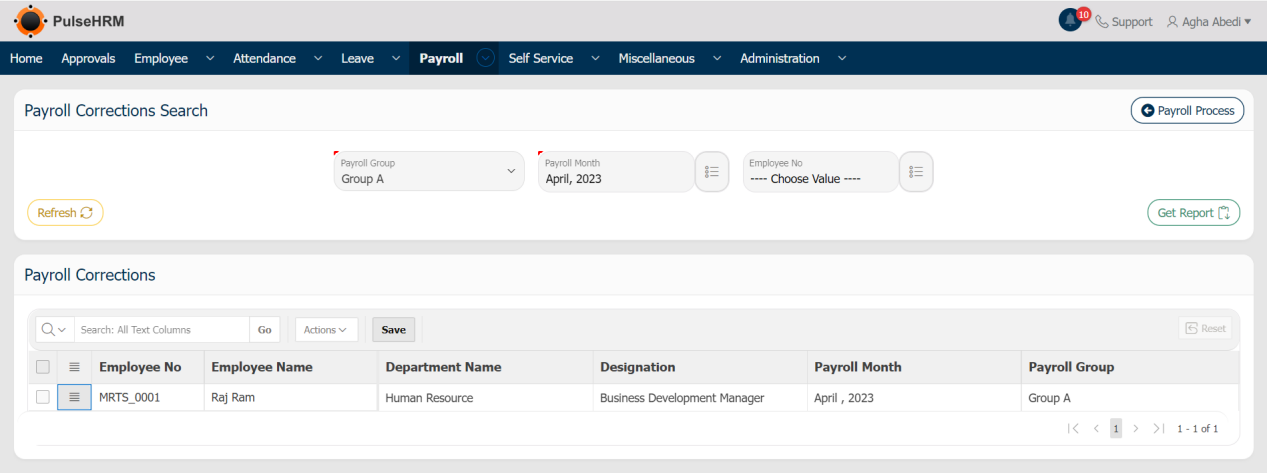
Payroll Corrections: If any changes has to be done in the payroll values, then the processed payroll can be rolled back by selecting the Payroll Corrections option.
To roll back the processed payroll, go to:
Payroll -> Payroll Process Setup -> Payroll Corrections -> Select the payroll group and Payroll month -> Select the employees -> click on horizontal line and select the delete row option -> click on save button.
9) EYOB Process
The EOYB is processed at the end of the calendar year.
- EOYB Process: Same as the Payroll Process, the EOYB Process also functions the same. The EOYB Process is used to process the End Of Year Bonus for the employees at the end of the calendar year.
To process the EOYB, go to:
Payroll -> EOYB Process Setup -> EOYB Process -> Select the payroll group -> Click on Get Report -> Select the employees -> Click on EOYB Process button.
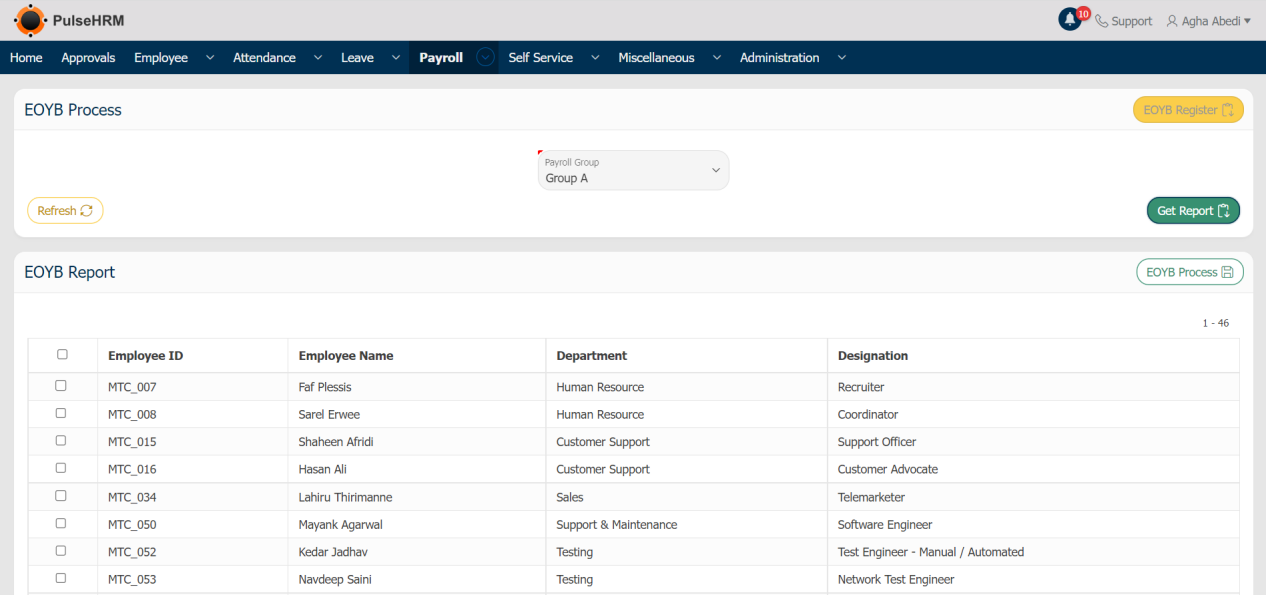
The EOYB Register button is used to view the EOYB Report after the EOYB is processed.
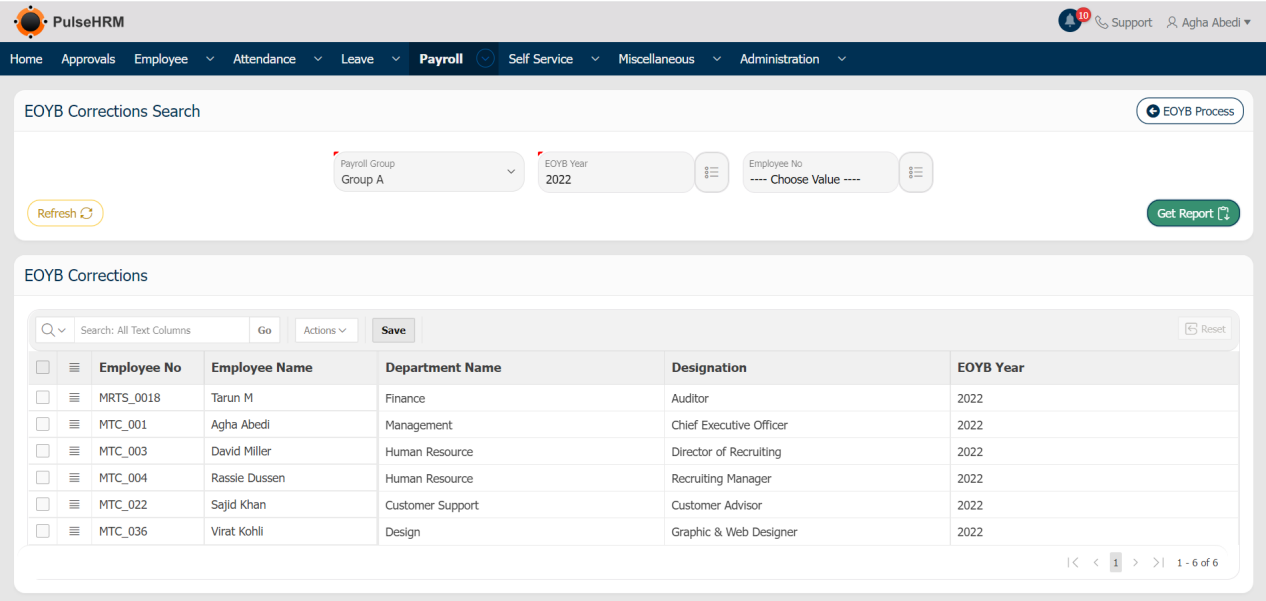
- EOYB Correction: If any changes has to be done in the EOYB values, then the processed EOYB can be rolled back by selecting the EOYB Corrections option.
To roll back the processed EOYB, go to:
Payroll -> EOYB Process Setup -> EOYB Corrections -> Select the payroll group and EOYB Year -> Select the employees -> click on horizontal line and select the delete row option -> click on save button.
10) Payroll Report
There are 7 reports that are displayed under payroll reports. They are:
i) CSG Report
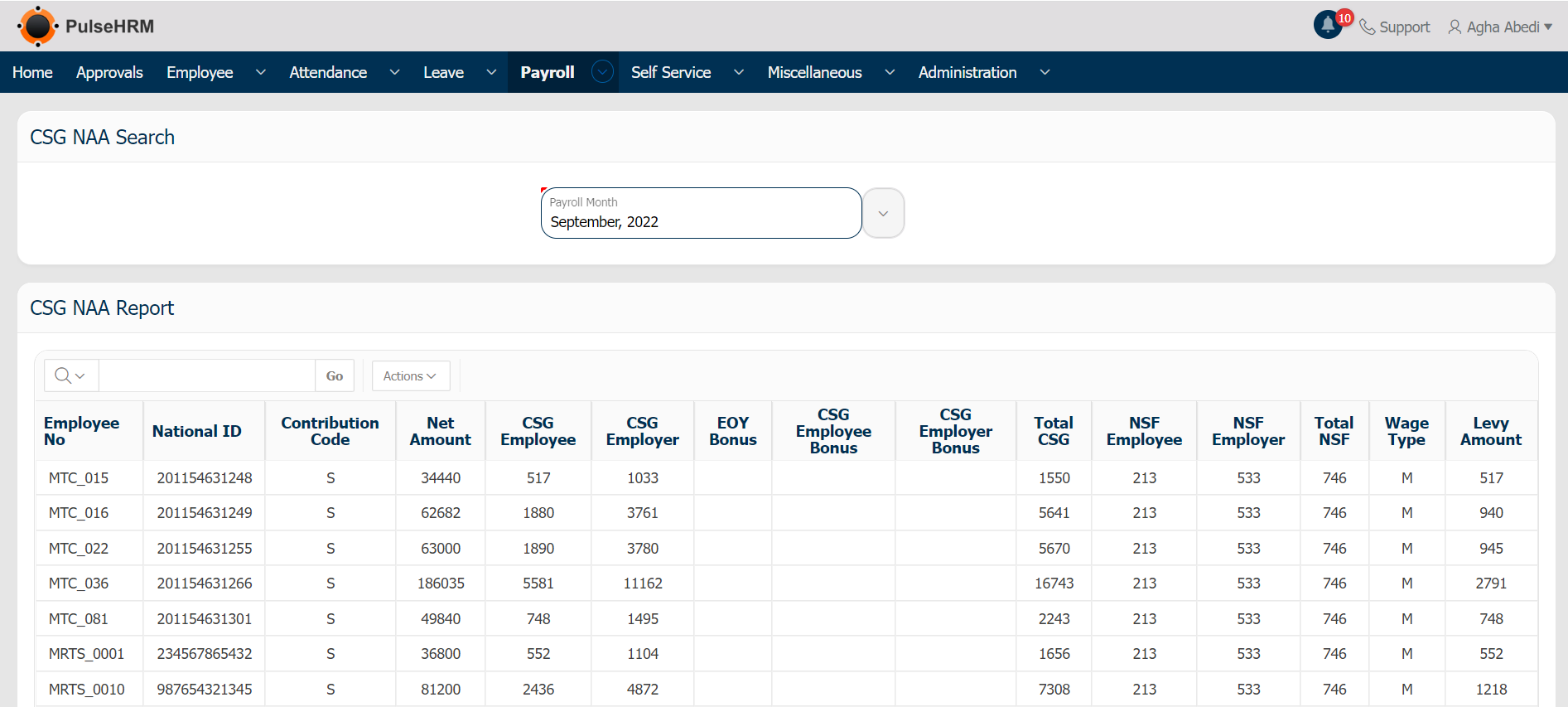
The CSG Report is used to display the CSG, Levy and NSF amounts deducted for the selected month for the employees of the organization.
To view the CSG Report, go to:
Payroll -> Payroll Reports -> CSG Report -> Enter the month -> The report will be generated.
ii) Overtime Monthly Report
The report of the Overtime amount calculated based in the time worked by the employee is displayed.
To view the report, go to:
Payroll -> Payroll Reports -> Overtime Monthly Report -> Enter the month -> The report will be generated.
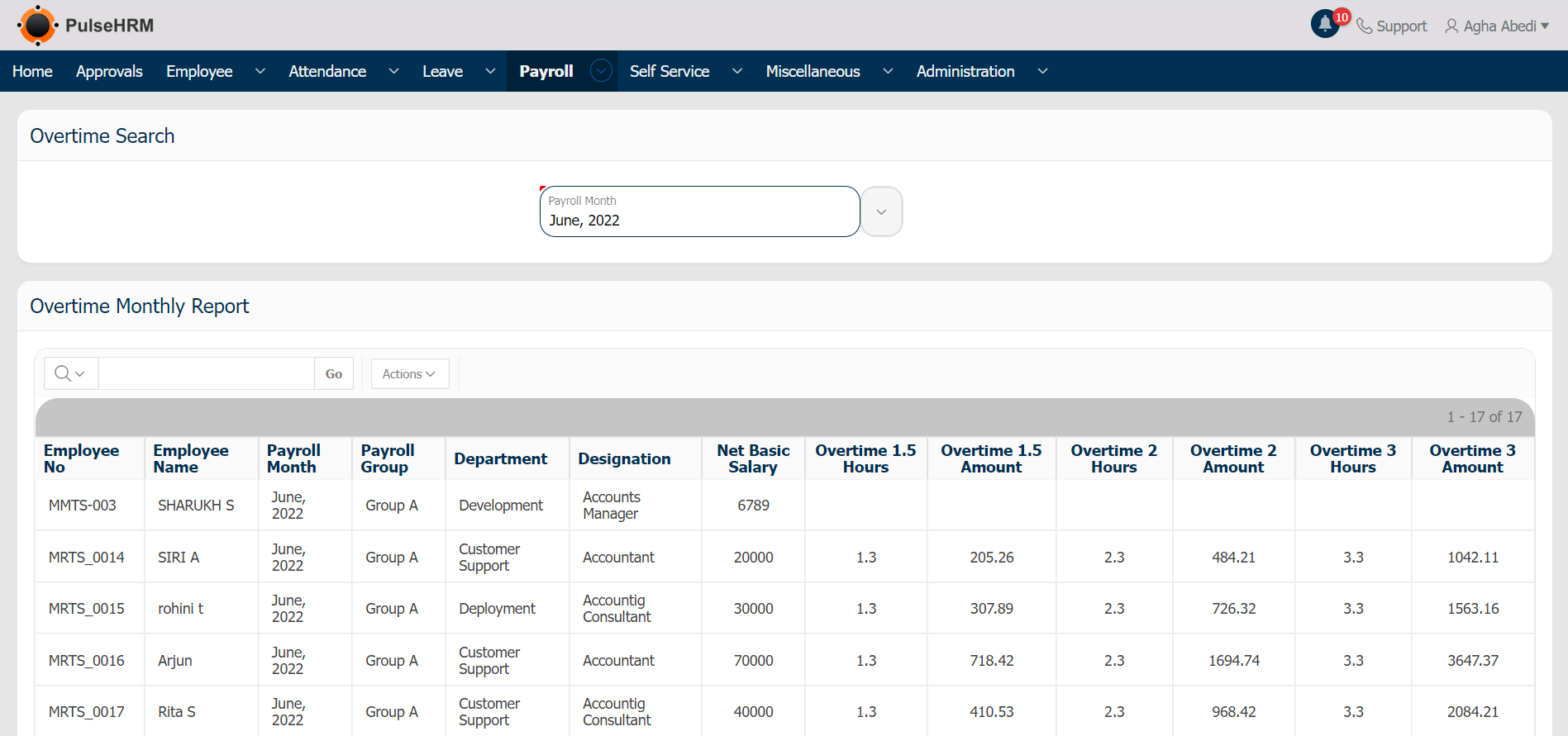
Overtime 1.5 calculation = Overtime 1.5 hours * Hourly Pay * 1.5
Overtime 2 calculation = Overtime 2 hours * Hourly Pay * 2
Overtime 3 calculation = Overtime 3 hours * Hourly Pay * 3
Hourly Pay = Basic / 190
iii) PAYE Return Report
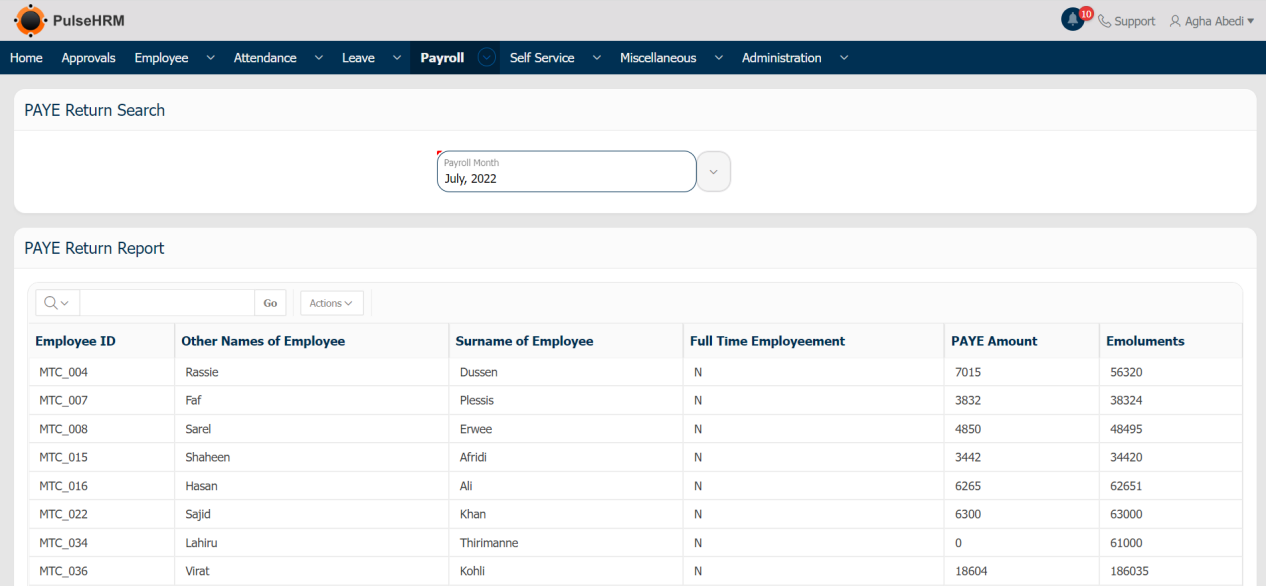
The PAYE amount after the deduction of the PAYE exemption is being displayed in this report.
To view the report, go to:
Payroll -> Payroll Reports -> PAYE Return Report -> Enter the month -> The report will be generated.
Emoluments is the amount on which the PAYE amount is calculated.
iv) PRGF Return Report
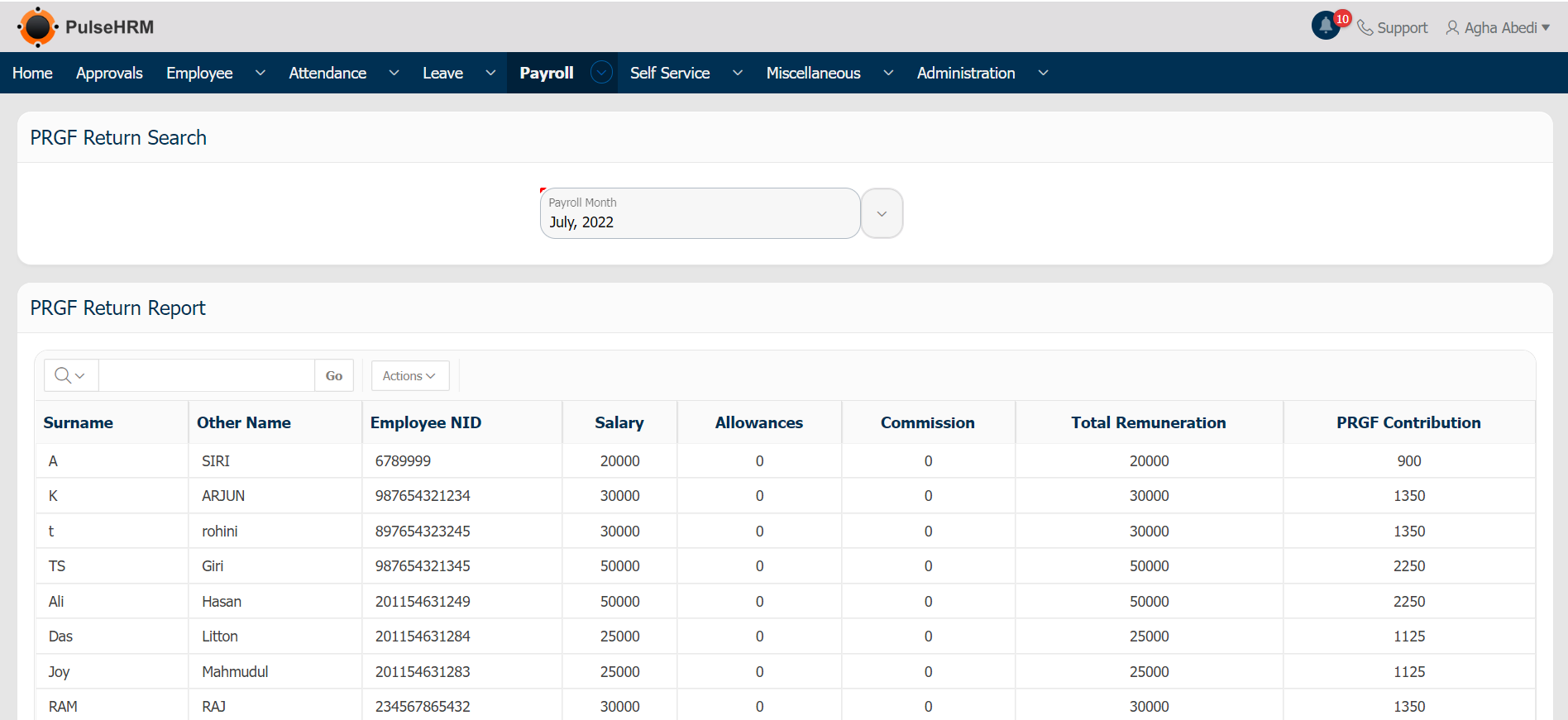
The Report of the PRGF amount deducted for the selected month will be displayed. The Salary is the basic amount generally on which the PRGF is calculated, Except basic, if the PRGF is calculated on other components of the payroll, the total amount will be displayed in the allowance column.
To view the report, go to:
Payroll -> Payroll Reports -> PAYE Return Report -> Enter the month -> The report will be generated.
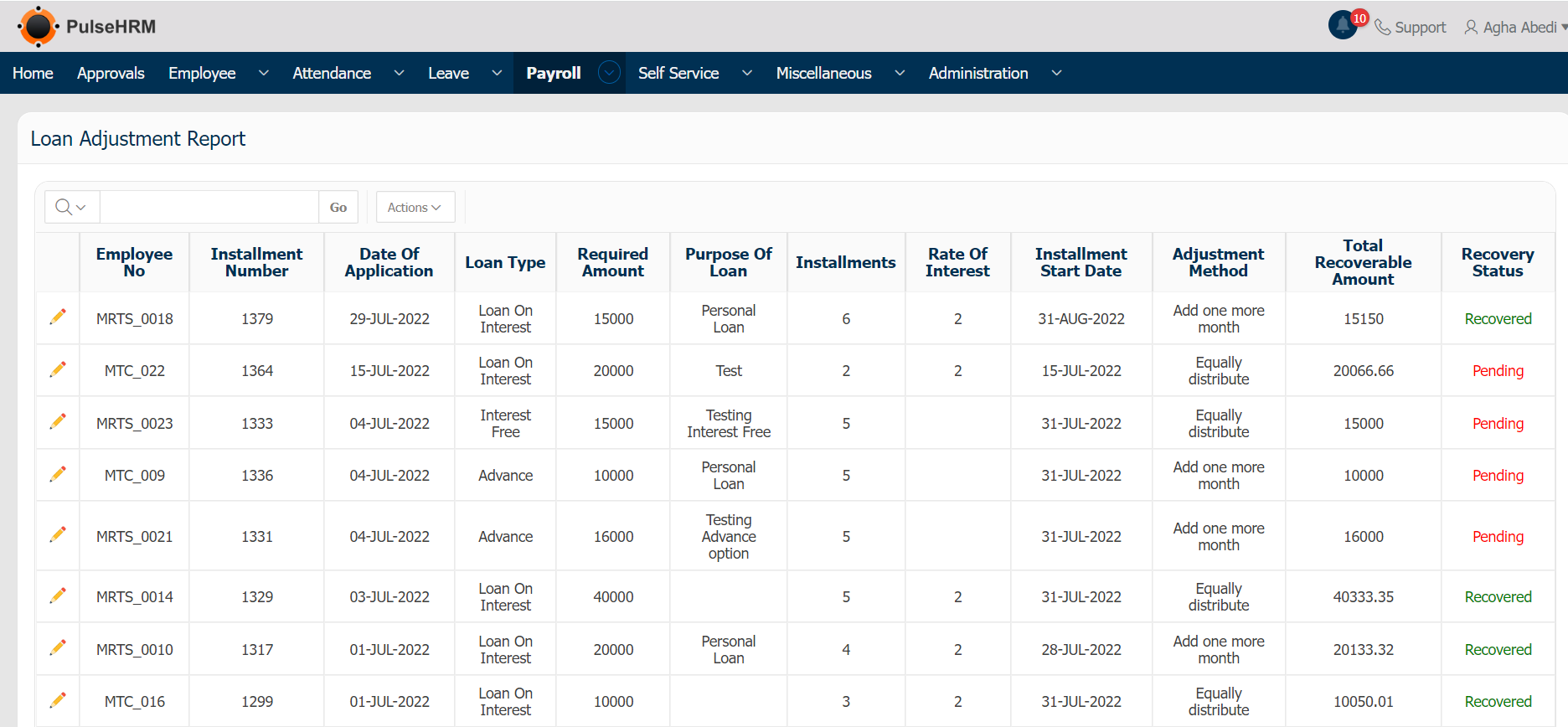
v) Loan Adjustment & Report
When the loan requisition submitted by the employee is approved by all the required approver. The loan details will be displayed in the Loan Adjustment & Report page.
To view the report, go to:
Payroll -> Payroll Reports -> Loan Adjustment & Report -> The report will be generated.
The loan details can be edited by clicking on the Edit button.
vi) EOYB Report
It displays the EOYB calculation report for the selected payroll group and the year.
To view the report, go to:
Payroll -> Payroll Reports -> PAYE Return Report -> Enter the payroll group and the Year -> The report will be generated.
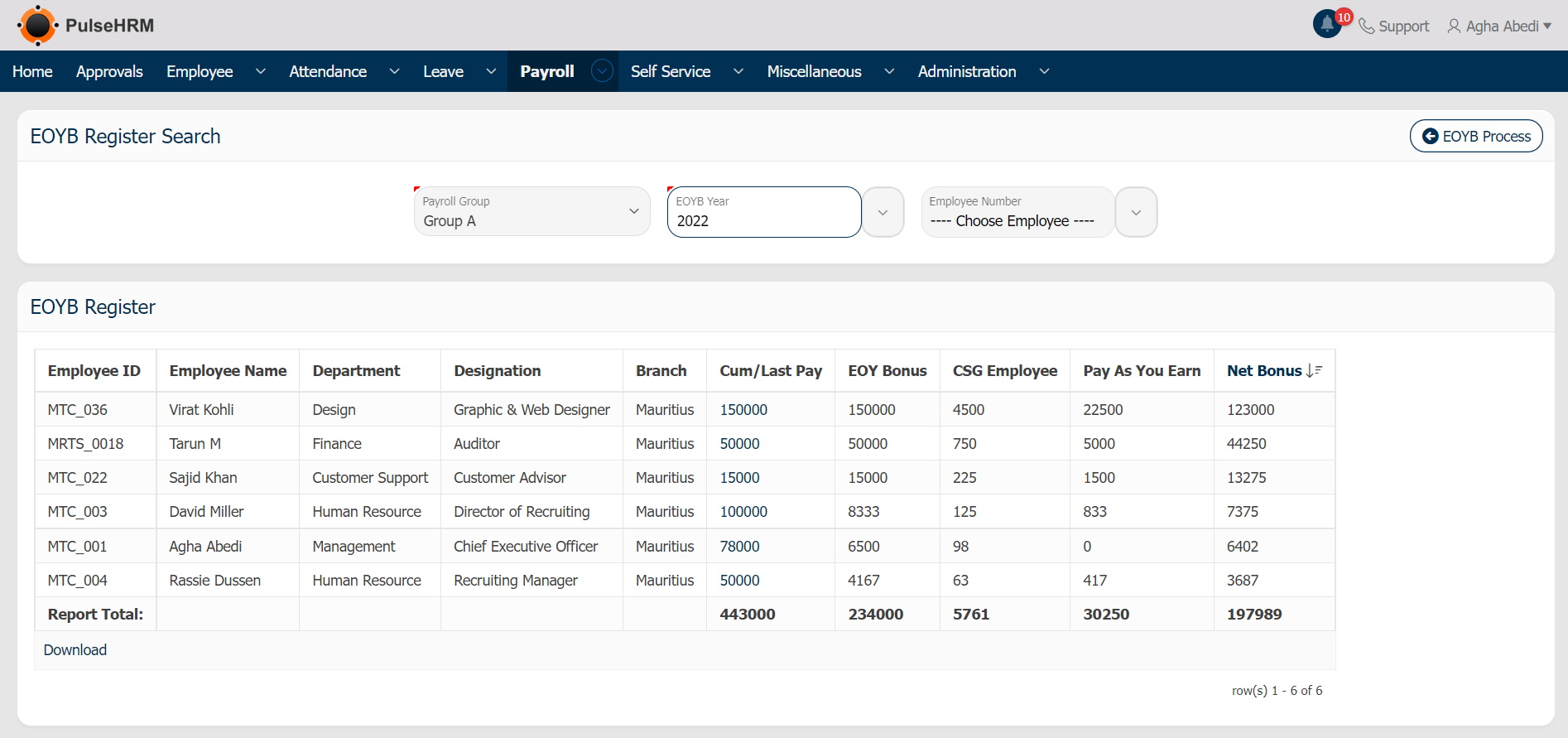
EOYB Amount = EOY Bonus – CSG – PAYE
EOY Bonus is calculated using either Normal Calculation or Last Basic methods.
vii) Pay Register
Once the payroll is processed, the payroll report can be viewed here.
To view the report, go to:
Payroll -> Payroll Reports -> Pay Register -> Enter the Payroll group and Payroll month -> The report will be generated.
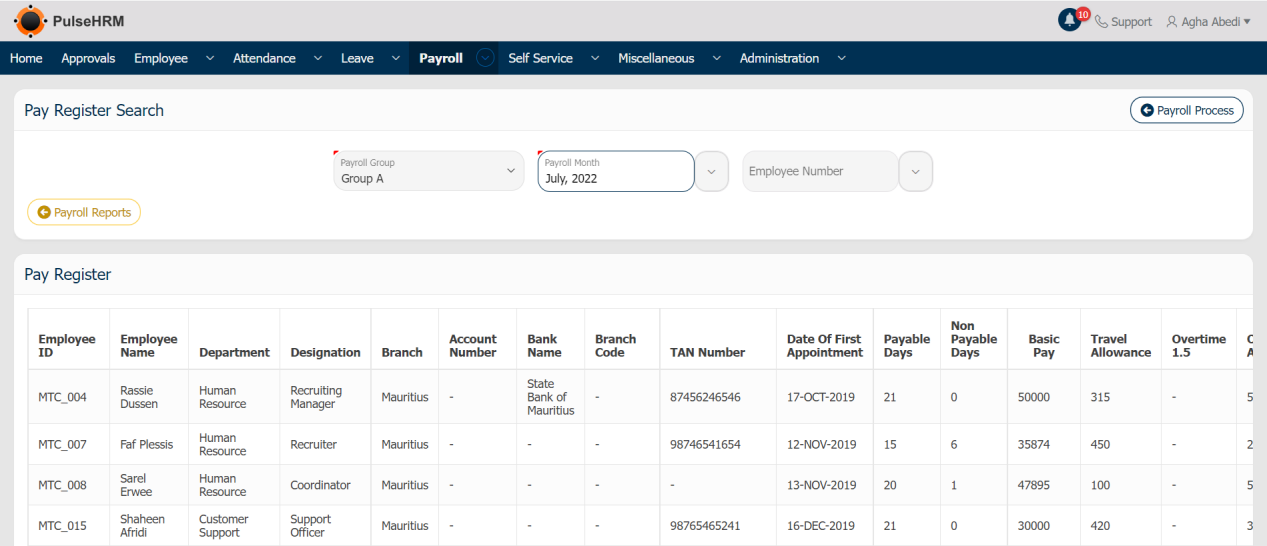
When clicked on the Payroll Process button, it will navigate to the payroll process page where the payroll can be processed.
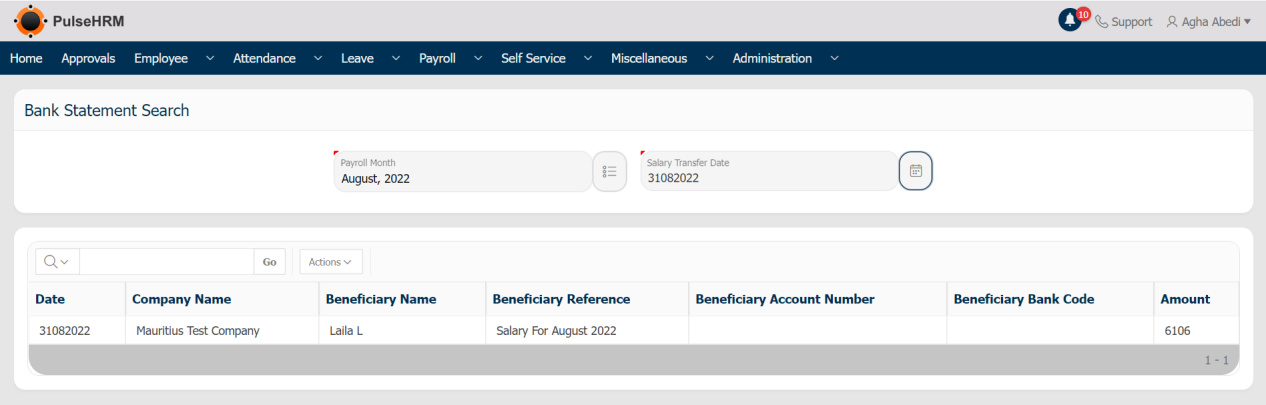
11) Bank Statement
Once the payroll is processed, a bank statement will be created automatically with the net salary of the employees which can be downloaded and shared to the respective bank to credit the same into the employees bank account.
To download the bank statement, go to:
Payroll -> Bank Statement -> Select the payroll Month and Salary Transfer date -> The report will be generated -> Download the report under Action.